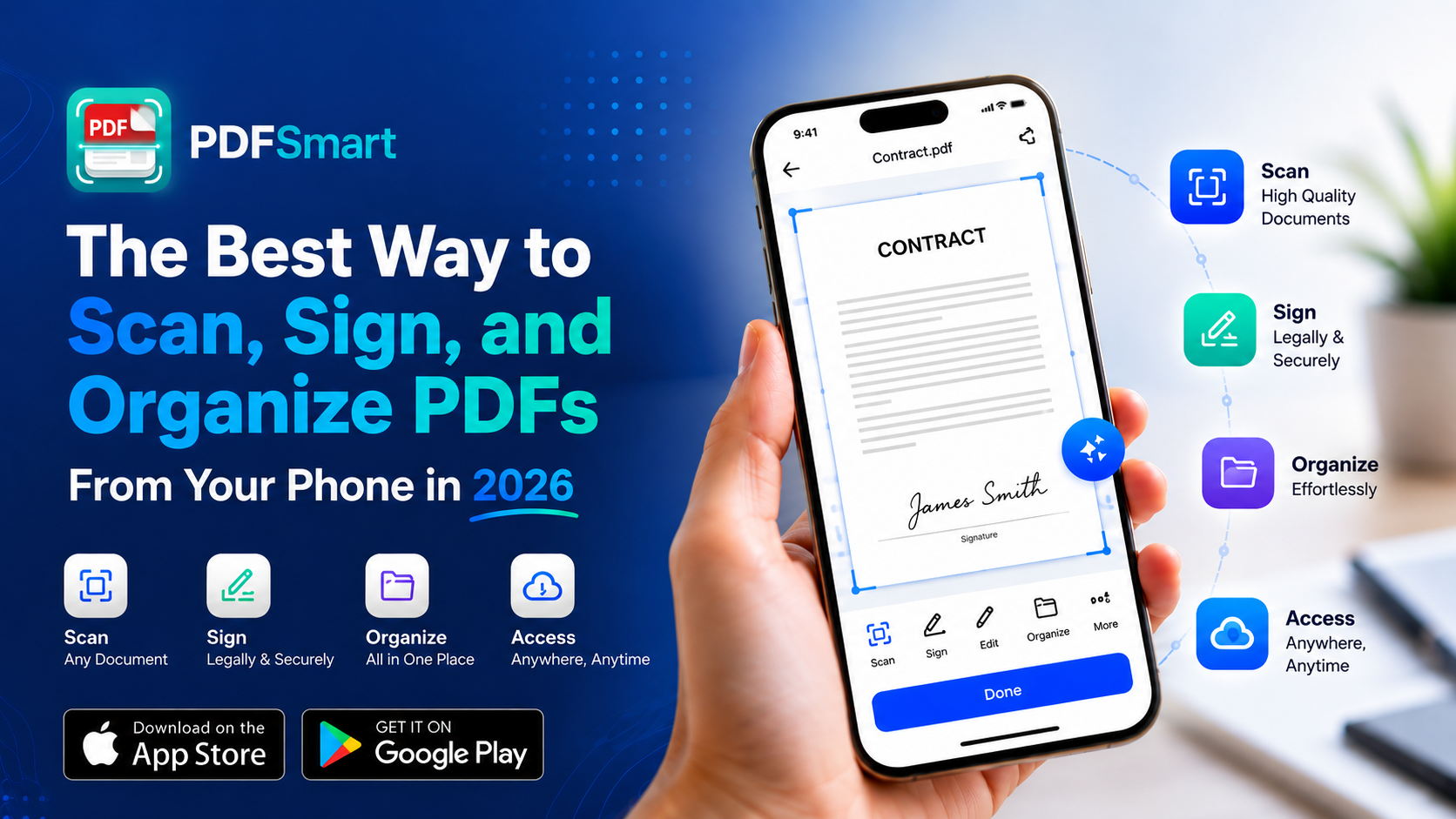
The Best Way to Scan, Sign, and Organize PDFs From Your Phone in 2026
Paper still finds a way into every corner of modern life insurance forms, rental agreements, medical records, invoices, ID copies. The difference in 2026 is that almost nobody reaches for a flatbed scanner anymore. Instead, people are scanning, cleaning up, signing, and sharing documents entirely from the phone already in their pocket. The question is no longer whether to use a mobile scanner, but which one actually respects your time and your privacy.
Why a Phone Camera Beats the Office Scanner
A smartphone camera paired with the right software can now outperform a dedicated scanner in almost every practical sense:
- Speed — a document goes from paper to a shareable PDF in under ten seconds.
- Portability — no dragging a machine along; the scanner is wherever you are.
- Intelligence — modern apps don't just capture an image, they understand what's on the page.
That last point is where most free scanning apps still fall short. They flatten a document into a picture and stop there, leaving you to search, translate, or summarize it manually. A genuinely useful scanner app in 2026 goes several steps further.
What a Modern PDF Scanner App Should Actually Do
If you're comparing tools, look past the marketing screenshots and check whether the app covers these four pillars.
1. Clean, Accurate Scanning
Automatic edge detection should crop a document correctly even when it's photographed at an angle, and glare or shadow correction should turn a dim tabletop shot into something that looks genuinely printed. This is table-stakes but plenty of apps still get it wrong on curled receipts or glossy IDs.
2. Real Organization, Not Just a Camera Roll
A pile of PDFs named "Scan001," "Scan002," and so on is barely better than a drawer full of paper. Folders, tags, and on-device text recognition that makes every scan searchable by content — not just filename — are what actually save time later.
3. Built-In E-Signatures
Printing a document just to sign and rescan it defeats the entire purpose of a digital scanner. A solid app lets you draw, type, or upload a signature once and drop it precisely where it belongs, no printer required.
4. An AI Layer That Understands the Document
This is the part that separates a basic scanner from a document assistant. Instead of leaving you to read a 12-page lease line by line, the app should be able to:
- Summarize long contracts and reports into a few clear takeaways
- Translate scanned text across dozens of languages instantly
- Extract selectable, searchable text through accurate OCR
- Flag key clauses, dates, and obligations in a contract before you sign
- Automatically classify documents into invoices, IDs, receipts, and more
- Surface keywords and recurring topics across a whole document library
- Answer direct questions about a file's content, grounded in the actual text
Where PanDoc Fits Into This
PanDoc was built around exactly this checklist. It handles the fundamentals smart edge-detection scanning, folder-based organization, and in-app e-signatures while its built-in assistant, PanAI, adds the summarizing, translating, legal-review, and classification layer described above. The distinguishing detail is that every one of those steps, from cropping the image to running OCR to storing your signature, happens on the device itself. Nothing is uploaded to a server unless you explicitly choose to share it.
Privacy Shouldn't Be an Afterthought
Documents like passports, financial statements, and signed contracts are some of the most sensitive files a person owns. Yet many "free" scanner apps quietly route images through cloud servers to power their AI features, or monetize the app through ad networks and data resale instead of a clear business model.
An on-device approach flips that trade-off:
| Capability | On-device apps | Typical cloud-based scanners |
|---|---|---|
| Processing location | Stays on your phone | Uploaded to remote servers |
| Network activity during scan | None required | Often required for OCR/AI |
| Optional biometric lock | Face ID / fingerprint | Varies |
| Business model | Free with no ad resale | Frequently ad- or data-funded |
This is an illustrative comparison against common free scanning apps.
From Paper to PDF in Three Steps
Regardless of which app you choose, the workflow that actually saves time looks like this:
- Point and capture. Frame the page; edge detection handles the rest automatically.
- Clean up and sign. Auto-enhancement brightens the page and removes shadows; add a signature if the document needs one.
- Save and share. File it into a folder, then export as a PDF or JPEG, or send it directly from the app.
No cables, no desktop software, no waiting for a scanner to warm up.
Frequently Asked Questions
Is a mobile PDF scanner as accurate as a physical scanner? Yes, for most everyday documents. Automatic edge detection and image enhancement compensate for angle and lighting, producing results that are frequently sharper than a flatbed scan of a curled or worn page.
Does scanning with an app require an internet connection? Not when the app processes everything on-device. Scanning, OCR, and signature placement can all work offline; a connection is only needed if you choose to share or back up a file afterward.
Can I sign documents directly inside a scanner app? Yes. Most modern scanner apps, including PanDoc, let you draw, type, or upload a signature and position it exactly where it's needed, removing the print-sign-rescan cycle entirely.
What file formats can I export scanned documents to? Standard scanner apps export to PDF or JPEG at minimum, with many supporting additional formats and direct sharing to email, cloud storage, or other apps.
Is it safe to scan sensitive documents like a passport or ID on my phone? It's safe as long as the app processes images on-device and doesn't upload them without your consent. Look for an optional Face ID or fingerprint lock as an added layer of protection for stored scans.
Stop Letting Paper Slow You Down
Between contracts, receipts, IDs, and everyday paperwork, most people scan something at least once a week — and every one of those moments is a chance to either lose time or save it. PanDoc is free to download, requires no account to start scanning, and keeps every document exactly where it should be: on your phone.
👉 Get PanDoc on the App Store or Get it on Google Play and turn your next stack of paper into a clean, searchable PDF in seconds.